
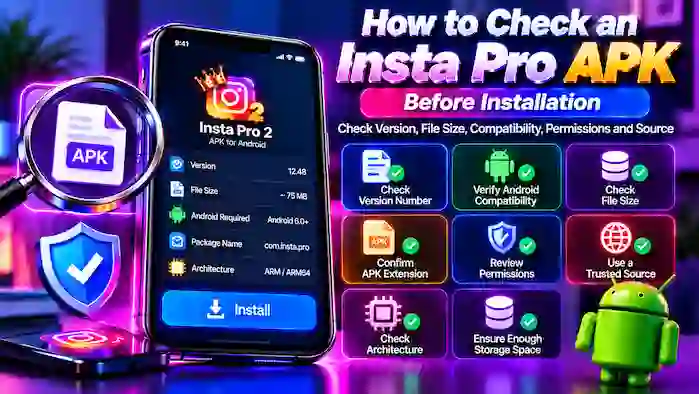
Before installing an Insta Pro APK, it is important to check the file carefully. A correct APK should match your required version, Android device, and expected features. Checking these details before installation can help prevent compatibility problems, corrupted files, package conflicts, and other issues.
Insta Pro is a third-party Instagram application, so users should also pay attention to the APK source and requested permissions before using it.
Why Should You Check an Insta Pro APK Before Installation?
An APK file can vary depending on its version and source. Two files using similar names may not necessarily be identical.
Checking an APK before installation helps you confirm:
- The correct version
- Android compatibility
- File size
- APK format
- Available features
- Required permissions
- Installation requirements
- Source information
These checks are especially useful when choosing between the latest and older Insta Pro releases.
1. Check the Insta Pro APK Version
The first thing to check is the exact version number.
Version information helps you determine whether the APK is the release you actually want to install.
For example, if you are looking for an older release, do not install a file simply because the page describes it as an “old version.” Check the exact version number first.
Similarly, a version such as 14.55 should not automatically be described as the latest release unless its current status has been verified.
2. Check Android Compatibility
Every Android device has a specific operating-system version, and APK releases can have different requirements.
Before installation, compare:
- Your Android version
- Minimum Android requirement
- Device compatibility
- Processor architecture, if listed
If the APK requires a newer Android version than your device supports, installation may fail or the application may not function correctly.
3. Check the APK File Size
File size is another useful detail to verify.
An APK that is significantly smaller than the listed size may indicate an incomplete download.
Before installation:
- Check the listed file size.
- Check the downloaded file size.
- Confirm that the download completed.
- Avoid installing an incomplete file.
Remember that APK size can differ between versions, so compare the file with information for the exact release you selected.
4. Check the APK File Extension
An Android application package normally uses the .apk file extension.
Check the downloaded file before opening it. If the file has an unexpected extension or appears to be a different type of download, do not assume it is the intended APK.
The file name alone should not be treated as proof of authenticity.
5. Check the APK Source
The source of a third-party APK is important.
Before downloading or installing Insta Pro, look for clear information about:
- Application name
- Version number
- File size
- Release information
- Android requirements
- Installation instructions
Be cautious with pages that use misleading download buttons, excessive redirects, or unclear information about the APK.
6. Review Requested Permissions
Android may display permissions requested by an application during installation or setup.
Review these permissions carefully and consider whether they make sense for an Instagram-related application.
Unexpected or excessive permissions can be a reason to stop and investigate the APK further.
Permissions can also vary between releases, so do not assume that every Insta Pro version requests exactly the same access.
7. Check the APK Before Installing It Over Another Version
If Insta Pro is already installed on your device, check whether the new APK is compatible with the existing installation.
Different APK builds can create:
- Package conflicts
- Signature conflicts
- Installation errors
- Update failures
If Android cannot update the existing installation, you may need to consider another compatible version or understand the consequences of removing the existing application before proceeding.
8. Check Available Storage
Make sure your Android device has enough free storage.
You need space for:
- The APK download
- Temporary installation files
- Installed application data
- Cache
- Other application files
A device with very little free storage may fail during installation even when the APK itself is valid.
9. Check Your Android Version
You can generally find your Android version through the phone’s settings.
A typical process is:
- Open Settings.
- Select About Phone or a similar option.
- Find Android Version.
- Note the version number.
- Compare it with the Insta Pro APK requirements.
Menu names can vary depending on the device manufacturer.
10. Check the APK Architecture
Some Android applications are built for specific processor architectures.
If architecture information is provided with the Insta Pro APK, compare it with your device before installation.
An incompatible build can result in installation errors or poor application performance.
If you are unsure which architecture your device uses, avoid choosing an APK based only on guesswork.
11. Check the Features You Actually Need
Different Insta Pro releases can have different features.
Before installing a specific version, check whether it includes the functions you need, such as:
- Media downloading
- Reel downloading
- Story downloading
- Privacy controls
- Dark mode
- Themes
- Multiple account support
- Additional customization
Do not assume that a feature available in one Insta Pro release will automatically be present in another.
12. Check Whether the APK Is an Old or New Version
Version age can affect compatibility.
An older APK may be useful for an older Android device or a preferred interface, but it may lack newer fixes.
A newer APK may provide updated features and compatibility improvements, but it may not work properly on every older device.
Choose based on your device and requirements rather than the version label alone.
13. Check for a Complete Download
A partially downloaded APK can cause installation problems.
Before opening the file:
- Confirm the download has finished.
- Compare its size with the listed size.
- Make sure your internet connection did not fail during the download.
- Check that the file can be accessed normally.
If the file appears incomplete, remove it and obtain the correct file again from a source you trust.
14. Check the APK for Suspicious Changes
A third-party APK can potentially be modified or repackaged.
Warning signs can include:
- Unclear version information
- Unexpected application name
- Suspicious file behavior
- Unusual permissions
- Misleading download pages
- A file that does not match the advertised release
If something does not match the information provided for the version, do not proceed without further verification.
15. Check Android Security Warnings
Android may display a warning when installing an application from outside official app-distribution channels.
Do not ignore security warnings automatically.
Instead, consider:
- Where the APK came from
- Whether you expected the download
- Whether the version is clearly identified
- Whether the file is from a source you trust
If you cannot verify the APK, it is better not to install it.
Insta Pro APK Pre-Installation Checklist
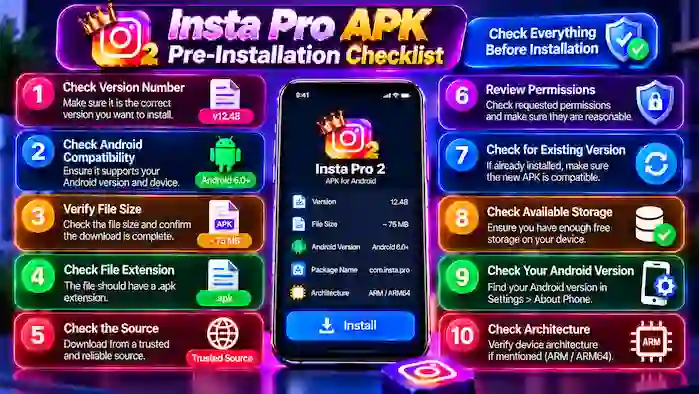
Before installing Insta Pro, use this quick checklist:
| Check | What to Verify |
| Version | Exact release number |
| Android | Supported Android version |
| File size | Matches listed information |
| Extension | Expected APK format |
| Source | Clearly identified and trusted |
| Permissions | Reasonable for the application |
| Storage | Enough free space |
| Architecture | Compatible processor build |
| Features | Required functions are included |
| Existing app | No package or signature conflict |
Completing these checks can reduce many common APK installation problems.
What to Do If an Insta Pro APK Fails the Checks
If the APK does not match the expected information, do not install it immediately.
Instead:
- Recheck the version number.
- Confirm your Android version.
- Compare the file size.
- Review the source.
- Check the required permissions.
- Look for another clearly identified compatible release.
Avoid installing multiple unknown APK files just to find one that works.
Is Checking an Insta Pro APK Enough to Guarantee Safety?
No.
Checking version information, permissions, source, and compatibility can help you make a more informed decision, but it does not guarantee that a third-party APK is completely safe.
Insta Pro is not the official Instagram application. Users should consider the additional privacy and security implications of installing and using third-party software.
For accounts containing important information, the official Instagram application remains the more predictable option.
Common Mistakes to Avoid
Downloading by File Name Alone
A familiar file name does not prove that the APK is the correct release.
Ignoring Android Requirements
Installing an incompatible version can cause crashes or installation errors.
Choosing the Wrong Version
Always check the exact version number before downloading.
Ignoring Permissions
Review permissions rather than accepting them without consideration.
Installing an Incomplete File
A damaged or incomplete APK can cause unnecessary installation problems.
Repeatedly Trying Random APKs
Downloading many unrelated files can make troubleshooting more difficult and increase unnecessary risk.
Frequently Asked Questions
How do I check an Insta Pro APK before installation?
Check its version, file size, Android requirements, source, permissions, architecture, and compatibility with your device.
How do I know which Insta Pro version I have?
If an Insta Pro version is already installed, check the application’s information or settings section for its version number.
What should I do if the APK size is different?
First confirm that you are comparing the exact same version. If the difference is significant or the download appears incomplete, avoid installing it until the file is verified.
Can I install any Insta Pro APK on Android?
No. Compatibility depends on the Android version, device architecture, APK build, and other requirements.
Why does Android block my Insta Pro APK?
Android can restrict installations from certain sources or reject an incompatible, corrupted, or improperly packaged APK.
Should I install an old Insta Pro APK?
An old version may be appropriate for certain compatibility or feature requirements, but older releases can lack newer fixes and may become incompatible with current systems.
Conclusion
Before installing an Insta Pro APK, check the exact version, Android compatibility, file size, source, permissions, architecture, storage requirements, and available features.
These checks cannot guarantee the safety of a third-party application, but they can help you identify obvious compatibility and file problems before installation. If the APK information does not match what you expected, choose a clearly identified compatible release instead of installing it blindly.