
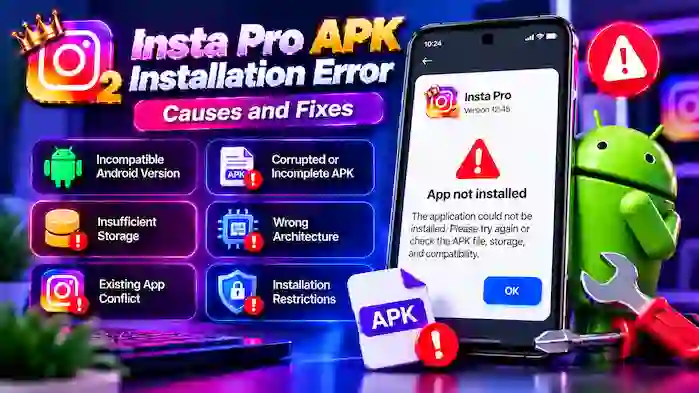
An Insta Pro APK installation error can occur when the APK is incompatible with your Android device, the downloaded file is incomplete, storage is limited, or another version is creating an installation conflict. Identifying the cause first is the easiest way to find the right solution.
This guide explains the most common Insta Pro APK installation errors, their causes, and practical troubleshooting steps.
Why Does Insta Pro APK Show an Installation Error?
Android can reject an APK for several reasons. Common causes include:
- Incompatible Android version
- Corrupted or incomplete APK
- Insufficient storage
- Incorrect APK architecture
- Existing application conflict
- Unsupported package configuration
- Installation restrictions
- Wrong or modified APK file
The exact reason can vary depending on your device and the specific Insta Pro release.
1. Check Your Android Version
One of the most common causes of installation failure is incompatibility with the Android version.
Before installing Insta Pro, check your phone’s Android version and compare it with the APK’s stated requirements.
A general process is:
- Open Settings.
- Go to About Phone.
- Find Android Version.
- Note the version number.
- Compare it with the Insta Pro APK requirements.
If the APK requires a newer Android version, you may need a compatible release instead.
2. Check the APK File
A damaged or incomplete APK can cause Android to reject the installation.
Check:
- File size
- File extension
- Version number
- Download completion
- Source information
If the file appears incomplete, remove it and obtain the correct version again from a source you trust.
3. Check Available Storage
Insufficient storage can prevent an APK from installing even when the download itself completed successfully.
Check your available storage and make sure there is enough room for:
- The APK
- Temporary installation files
- Application data
- Cache
Freeing some storage before trying again can resolve this type of error.
4. Check for an Existing Insta Pro Version
An existing Insta Pro installation can sometimes conflict with the APK you are trying to install.
This can happen when the new APK uses a different package or signing configuration.
Before removing an existing version, remember that uninstalling an application can affect locally stored app data.
If you do not want to remove the current installation, look for a compatible APK that can update it directly.
5. Check APK Architecture
Some APK builds are designed for specific Android processor architectures.
If the architecture does not match your device, Android may reject the installation or the application may fail after installation.
If architecture information is provided, verify that the selected build is compatible with your device.
6. Check the APK Version
A version mismatch can also create problems.
For example, you may download an older Insta Pro release while your device or existing installation expects another build.
Before installing, verify:
- Exact version number
- Android requirements
- File size
- Release information
- Package details, if provided
Do not rely only on labels such as “latest” or “old version.”
7. Review Android Installation Restrictions
Android may restrict installations from sources outside its standard application-distribution channels.
If your device displays an installation warning, read it carefully and understand why the warning appeared.
The exact settings can vary depending on your Android version and device manufacturer.
Only proceed with a third-party APK when you trust its source and understand the installation implications.
Insta Pro APK Parsing Error
A parsing error can occur when Android cannot properly interpret an APK.
Possible causes include:
- Incompatible Android version
- Damaged APK
- Incorrect application package
- Unsupported build
- Incomplete download
How to Troubleshoot a Parsing Error
Start by checking your Android version and APK requirements. Then verify that the APK downloaded completely.
If the file is damaged or incompatible, obtain a correctly identified compatible release rather than repeatedly installing the same file.
Insta Pro APK App Not Installed Error
The “App not installed” message is another common Android installation problem.
Possible causes include:
- Existing conflicting application
- Insufficient storage
- Incompatible APK
- Corrupted file
- Unsupported architecture
- Package or signature mismatch
Work through each possibility rather than immediately downloading another random APK.
Insta Pro APK Installation Blocked
If Android blocks the installation, first determine why.
The device may be restricting the installation because:
- The APK comes from an external source.
- The file cannot be verified.
- The application is incompatible.
- Android security settings are preventing installation.
Review the warning and source information before deciding whether to continue.
Insta Pro APK Won’t Install After Download
If the APK downloaded correctly but still will not install, use this troubleshooting sequence:
- Confirm the Android version.
- Check available storage.
- Verify the APK version.
- Check the file size.
- Confirm architecture if available.
- Check for an existing Insta Pro installation.
- Restart the device.
- Try a compatible release if the current APK does not meet your requirements.
This approach can help identify whether the problem is with the device or the APK.
Insta Pro APK Installation Error After an Update
If the error appeared after updating Insta Pro, the new release may have different requirements.
Check:
- New Android requirements
- APK architecture
- Package configuration
- Storage requirements
- Version compatibility
If the new release cannot be installed over your current version, the two builds may not be directly compatible.
Insta Pro Old Version Installation Error
Installing an older Insta Pro version can also produce errors.
Older releases may not support your current Android version or may conflict with a newer installation.
Before switching to an old version, check its compatibility carefully and understand whether removing the existing installation will affect locally stored data.
Insta Pro Installation Error on Older Android
Older Android devices can have difficulty installing newer APK releases.
If your Android version is outdated, look for a release specifically compatible with your device. Keep in mind that older versions may lack newer features and can have compatibility limitations with current Instagram systems.
Insta Pro Installation Error on New Android
A very old APK can also cause problems on newer Android versions.
Possible symptoms include:
- Installation failure
- Crashes
- Missing functionality
- Login problems
- Poor performance
In this situation, a newer compatible Insta Pro release may be more appropriate.
What to Do If Nothing Fixes the Installation Error
If the problem continues after checking all basic requirements, avoid repeatedly installing unknown APK files.
Instead:
- Confirm the exact APK version.
- Review its Android requirements.
- Check the source.
- Verify the file is complete.
- Check your device’s compatibility.
- Consider using a different compatible release.
- Consider the official Instagram application if you prefer official distribution and support.
Insta Pro APK Installation Error Checklist
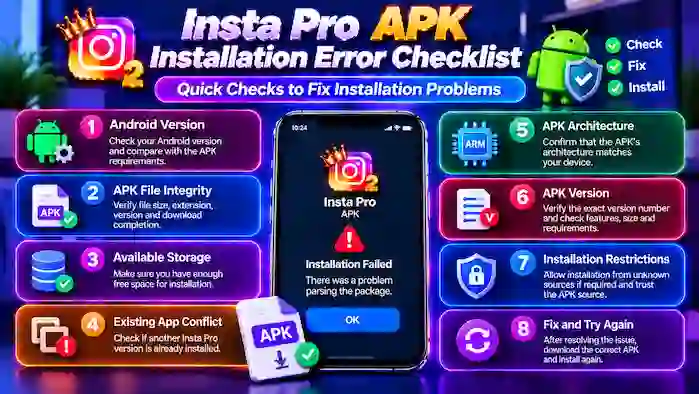
Before trying another installation, check this list:
| Check | What to Verify |
| Android | Supported Android version |
| Storage | Enough free space |
| APK | Complete and valid file |
| Version | Correct release |
| Architecture | Compatible device build |
| Existing app | No package conflict |
| Source | Clearly identified APK source |
| Permissions | Appropriate installation access |
Is the APK Safe to Install?
An installation error does not necessarily mean an APK is unsafe, but users should still evaluate third-party APKs carefully.
Before installation, consider:
- Source reputation
- Version information
- Requested permissions
- File details
- Android compatibility
- Whether the APK has been modified or repackaged
Do not assume an APK is safe simply because the file name looks familiar.
Frequently Asked Questions
Why is my Insta Pro APK not installing?
The most common causes include Android incompatibility, insufficient storage, a corrupted APK, package conflicts, or an unsupported architecture.
How do I fix an Insta Pro APK parsing error?
Check your Android version, verify the APK requirements, and make sure the file downloaded completely. A damaged or incompatible APK may need to be replaced with a compatible release.
Why does Android say “App not installed”?
This can happen because of a package conflict, incompatible APK, insufficient storage, corrupted file, or signing mismatch.
Can I install an old Insta Pro version?
You may be able to install an older version if it is compatible with your device. However, switching versions can create package conflicts and may affect locally stored data.
Why won’t Insta Pro install after an update?
The new release may have different Android requirements, architecture, package configuration, or compatibility limitations.
Should I download another APK if installation fails?
First identify the cause of the error. Downloading random APK files can create additional compatibility and security problems.
Conclusion
An Insta Pro APK installation error can usually be traced to compatibility, storage, file integrity, architecture, or package conflicts. Checking these factors systematically is more effective than repeatedly trying unrelated APK files.
Before installing Insta Pro, verify the exact version, Android requirements, file information, available storage, and existing application status. If the selected release is not compatible with your device, choose a clearly identified compatible version or consider the official Instagram application.