
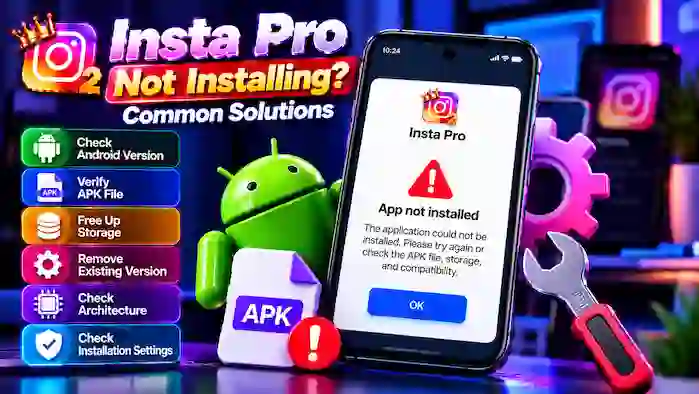
If Insta Pro is not installing on your Android device, the problem may be related to the APK file, Android version, available storage, an existing application, or device compatibility. Before downloading another APK, it is better to identify the reason the current installation is failing.
This guide covers the most common reasons Insta Pro does not install and explains practical ways to troubleshoot each problem.
Why Is Insta Pro Not Installing?
An APK installation can fail for several reasons. The most common include:
- Incompatible Android version
- Corrupted or incomplete APK
- Insufficient storage
- Existing Insta Pro installation
- Package or signature conflict
- Unsupported processor architecture
- Installation restrictions
- Incorrect APK version
- Device compatibility problems
The correct solution depends on the exact error displayed by Android.
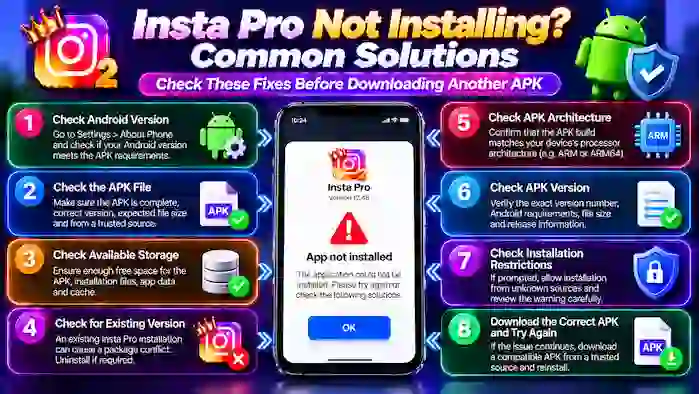
1. Check Your Android Version
The first thing to check is your device’s Android version.
A particular Insta Pro APK may require a minimum Android version. If your device uses an older version, Android may reject the installation.
To check your Android version:
- Open Settings.
- Go to About Phone or a similar section.
- Find Android Version.
- Compare it with the APK requirements.
If your Android version is too old, look for a compatible release rather than repeatedly installing the same APK.
2. Check the Insta Pro APK File
A damaged or incomplete APK is another common reason for installation failure.
Check the downloaded file for:
- Correct file extension
- Expected file size
- Correct version number
- Complete download
- Clear source information
If the file appears incomplete, delete it and obtain the correct APK again from a source you trust.
3. Check Available Storage
Your phone needs enough free space to install an application.
The required space can include:
- APK file
- Temporary installation files
- Application data
- Cache
- Additional files
If storage is nearly full, remove unnecessary files or applications before trying the installation again.
4. Check for an Existing Insta Pro Installation
An existing version of Insta Pro can sometimes prevent another APK from being installed.
This may happen when the new APK has a different package or signing configuration.
If Android reports a package conflict, check whether another Insta Pro version is already installed.
Before uninstalling an existing application, remember that removing it can affect locally stored application data.
5. Check the APK Architecture
Some APK builds are designed for specific processor architectures.
If the APK does not match your device, installation may fail or the application may not run correctly afterward.
If architecture information is provided, verify that the APK build is compatible with your Android device.
6. Check the APK Version
Make sure you downloaded the version you actually need.
For example, an APK intended for a newer Android version may not install on an older phone. Likewise, an old APK may have compatibility limitations on a newer Android system.
Before installation, check:
- Version number
- Android requirements
- File size
- Release information
- Architecture, if listed
7. Check Android Installation Restrictions
Android can restrict installation of applications obtained outside its standard app-distribution channels.
If your device displays a warning, read the message carefully before proceeding.
The exact settings vary by Android version and manufacturer. Only install a third-party APK when you understand its source and trust the file.
Insta Pro Says “App Not Installed”
The “App not installed” message is one of the most common APK errors.
Possible causes include:
- Incompatible APK
- Existing package conflict
- Insufficient storage
- Corrupted file
- Unsupported architecture
- Package or signing mismatch
Work through these possible causes instead of immediately downloading a different APK.
Insta Pro Parsing Error
A parsing error means Android cannot properly process the APK package.
This can happen when:
- The APK is damaged.
- The Android version is incompatible.
- The APK is not designed for your device.
- The file is incomplete.
- The application package is not supported.
Check the APK requirements and download status before trying again.
Insta Pro Installation Stops Halfway
If installation begins but stops before completion, check your available storage first.
Other possible causes include:
- Damaged APK
- Android compatibility issue
- Package conflict
- Device restrictions
Restart your device and verify the APK information before attempting another installation.
Insta Pro APK Downloaded but Will Not Install
A successful download does not always mean that the APK is usable.
Before trying to install it again:
- Check the file size.
- Confirm the version number.
- Check Android compatibility.
- Confirm the file downloaded completely.
- Check for an existing Insta Pro installation.
- Review architecture requirements.
If the file does not match the listed information, obtain the correct release from a source you trust.
Insta Pro Not Installing After an Update
If Insta Pro worked previously but stopped installing after an update, the newer release may have changed its requirements.
Possible differences include:
- New Android requirements
- Different APK architecture
- Package changes
- New installation requirements
- Device compatibility changes
Check the new version details before attempting another installation.
Insta Pro Not Installing on an Old Android Phone
Older Android phones may not support newer Insta Pro releases.
If your device has an older Android version, you may need a release designed for that software.
However, using an older APK can have disadvantages, including:
- Missing newer features
- Fewer bug fixes
- Compatibility problems with current Instagram systems
- Potential login issues
Choose a version based on compatibility rather than simply choosing the oldest available release.
Insta Pro Not Installing on a New Android Phone
New Android versions can also have problems with very old APK builds.
An older Insta Pro release may not be optimized for newer Android security or application requirements.
If an old APK fails to install, check whether a newer compatible release is available.
Check Your Device Storage
If you have enough storage for the APK but installation still fails, remember that Android may need additional temporary space during installation.
Try to keep some additional free storage available before starting the installation.
Restart Your Android Device
A simple restart can sometimes resolve temporary installation problems.
After restarting:
- Check your available storage.
- Locate the APK.
- Confirm its version.
- Try the installation again.
If the same error appears, continue troubleshooting instead of repeatedly restarting.
Check for Duplicate or Conflicting Apps
If multiple Insta Pro-related applications are installed, they may create conflicts.
Check your installed applications for previous Insta Pro versions or builds.
If you decide to remove a conflicting application, consider whether you need any locally stored data first.
How to Choose a Compatible Insta Pro Version
If the current APK will not install, selecting another version may help.
Before choosing a different release, check:
- Android compatibility
- Version number
- File size
- Architecture
- Features
- Package requirements
Do not choose a random APK just because it has a different version number.
Is Insta Pro Safe to Install?
Insta Pro is a third-party application, so users should evaluate the APK before installation.
Consider:
- APK source
- Version information
- File details
- Requested permissions
- Android compatibility
- Whether the application has been modified or repackaged
An installation error does not automatically mean the file is unsafe, but users should not ignore source and security considerations.
Quick Fix Checklist
If Insta Pro is not installing, work through this checklist:
- Check Android version.
- Check available storage.
- Verify APK file size.
- Confirm the APK version.
- Check processor architecture if available.
- Look for an existing Insta Pro installation.
- Check whether the APK download completed.
- Review Android installation restrictions.
- Restart the device.
- Try a compatible release if necessary.
When Should You Stop Trying to Install?
If you have repeatedly checked compatibility and the APK still fails, avoid continuously downloading unknown files.
Instead, confirm whether the problem is caused by:
- Your Android version
- The APK itself
- Device compatibility
- An existing installation
- The APK source
If you cannot verify the APK, consider not installing it. Users who prefer official distribution can use the official Instagram application instead.
Frequently Asked Questions
Why is Insta Pro not installing?
The most common causes are incompatible Android versions, insufficient storage, damaged APK files, package conflicts, and unsupported APK builds.
How do I fix “App not installed” on Insta Pro?
Check storage, Android compatibility, APK integrity, existing installations, and architecture requirements.
Why does Insta Pro show a parsing error?
A parsing error can result from a corrupted APK, incompatible Android version, incomplete download, or unsupported package.
Can an old Insta Pro version be installed on Android?
It depends on the APK and Android version. An older release may work on some devices but may not support newer Android systems.
Why won’t the latest Insta Pro APK install?
The latest release may require a newer Android version, different architecture, or other requirements that your device does not meet.
Should I download another APK if Insta Pro is not installing?
First identify the cause of the installation problem. Downloading random APK files can create additional compatibility and security issues.
Conclusion
If Insta Pro is not installing, start by checking your Android version, storage, APK integrity, version number, architecture, and existing installations. These factors account for many common APK installation problems.
Instead of repeatedly trying unrelated files, choose a clearly identified Insta Pro release that matches your device requirements. If the problem continues, consider whether the specific APK is compatible with your device or whether using the official Instagram application is a better option.